How Taia Works
Prefer to watch? This five-minute video covers the whole flow below, from upload to professional review.
Prefer slides to share with your team? Download the overview as PowerPoint or PDF.
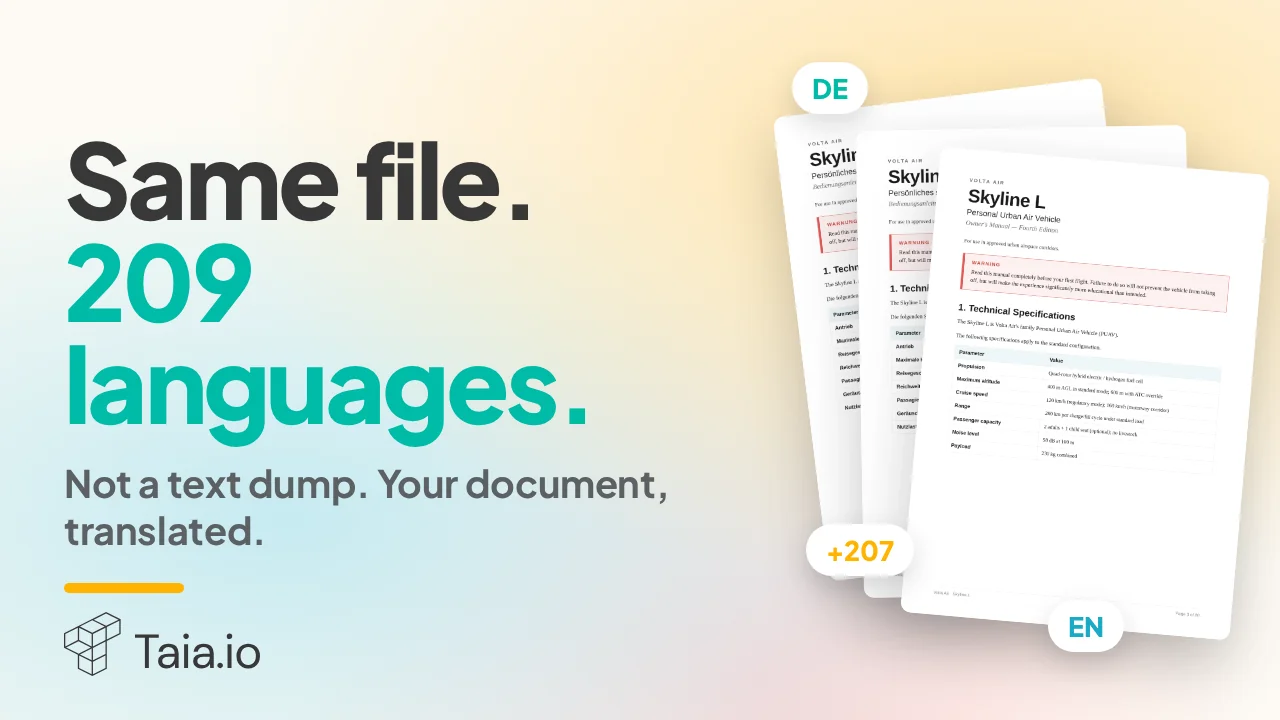
In short: you upload a document, pick your languages, and get the same document back, translated, with its layout, tables and styling in place. Your glossary, translation memory and style guide guide the AI, and you decide how much human review it gets: none, your own team's, or professional linguists'. All three happen in the same project.
1. Upload your file
Start on the File Translation page. Drag your files in or click Select from your computer. You can upload one file or a whole batch, up to 100 MB per project.
- Formats: Word, Excel, PowerPoint, InDesign (IDML), XLIFF, HTML, JSON, subtitles and more. Pro and Enterprise plans support 65+ formats; Free and Basic support 15.
- The project name fills itself in from your first file, and Taia detects the source language for you.
- PDF works, but the original is better. Taia translates a PDF and gives you back an editable Word or PowerPoint file. The formatting carries over well in most cases, but a PDF is a snapshot of a document rather than the document itself, so if you have the Word or InDesign file, upload that instead.
See Your first AI translation for a step-by-step walkthrough, or Create an AI translation project.
2. Choose your languages
Pick one or many target languages for the same project. Pro and Enterprise include 209 languages; Free and Basic include 50. See Supported languages.
If different files need different languages, see Send files to different languages.
3. Add your glossary, translation memory and style guide
Below the language picker are up to three optional dropdowns. They're what turns a generic AI translation into one that sounds like you:
- Glossary: the terms that must always be translated one way, and the ones that must never be translated, like your brand and product names. See Create a glossary or Import a glossary.
- Translation memory: every sentence your team has already translated and approved. Taia reads your approved wording before it translates anything new. With Auto-apply TM matches switched on, a sentence your team already approved comes back exactly as approved; otherwise your closest matches guide the AI. See Translation Memory: how it works.
- Style guide: tone, formality, audience and house rules, such as "use formal Sie in German". See Create a Style Guide.
Not sure which goes where? Glossaries vs Style Guides explains the difference.
Already have glossaries or translations from earlier work? You can import a TMX file and import a glossary, so you don't start from scratch.
Your glossary, translation memory and style guide are read at translation time, to guide the AI toward your wording on your own projects. Nothing is absorbed into a model. See Trust & Security on taia.io.
Glossaries, translation memories and style guides are part of the Pro and Enterprise plans.
4. Choose how it gets translated
Click Submit Project. When your file is ready, the project page says nothing is translated yet and offers two cards: AI Translation and Professional Translation (professional linguists). Between them sits a third path, Translation Studio, where your own team reviews the AI translation.
AI Translation
Click Translate Now and choose an AI tier. Each tier shows how long it takes and what this translation costs:
| Tier | Credits per word, per language | Best for |
|---|---|---|
| Standard | 1 | Everyday and internal content |
| Advanced | 2 | Most business content; also follows your style guide |
| Premium | 4 | Complex or high-stakes content; also follows your style guide |
All three use your translation memory and glossary. Advanced and Premium are on Pro and Enterprise. The dialog shows the exact credit cost before you confirm. See How credits are calculated.
Most files come back within minutes. The result is a first draft: no AI translation is 100% reliable, ours included, so for anything you publish, have a person read it.
Translation Studio: your own team reviews it
Translation Studio is where you hand the AI translation to a colleague. Click Assign for Editing, choose a task type (Post-Edit AI Translation, Revision or Proofreading) and a person. They review it in Taia's built-in Translation Editor, save each segment, and click Submit Assignment when they're done. Translation Studio is part of the Pro and Enterprise plans.
See How Translation Studio work moves and Assign work to a teammate.
Professional Translation: professional linguists
For contracts, regulated content, or anything a customer or a regulator will read closely, click Get Quote. The price is instant, and you choose a quality tier:
- Essential: one professional linguist.
- Enhanced: a translator and a reviser, ISO 17100 certified. The tier most people choose for anything published.
- Ultimate: Translation, Editing and Proofreading (TEP), by a translator, a reviser and a proofreader.
Approve the quote and a Taia project manager takes it from there, using your glossary and translation memory, in the same project. See Translation quality tiers explained, Translation services: MTPE, translation, revision and proofreading and Your first professional project.
Not sure which path fits? When to use AI vs human translation walks through it.
5. Review in the built-in Translation Editor
The Translation Editor (the CAT editor) is built into Taia, so there's no separate tool to install or export to: open any translation and review it right there. It shows the source and the translation side by side, one segment at a time. Alongside each segment it shows:
- Translation memory matches, with a match score. See Use TM matches in the CAT editor.
- Glossary terms found in the segment. See Apply glossary terms.
- Automatic checks: formatting tags and length limits are checked when you save, and missing glossary terms are highlighted as you type. Reviewers can also flag errors on a segment by category and severity. See Review errors (QA flags).
When a translation memory is attached to the project, the segments your team saves go into it, so the next project starts from your corrections. Start with the Translation Editor overview.
6. Download the same file, translated
Download gives you your files back in their original format (a PDF comes back as Word or PowerPoint). One file comes back as that file; several files or languages come back as a ZIP with one folder per language. If your team edited the translation, Taia rebuilds the documents from their edits first. See Download the edited files.
7. Bring your team in
On Pro and Enterprise, an organization holds your people, projects, glossaries, translation memories and billing in one place. Split it into teams, give each person a role, and every project, glossary and memory is shared with the people who need it.
What happens behind the scenes
Between Translate Now and the download, Taia:
- Splits your document into segments, usually sentences, and keeps track of the formatting around each one.
- Fills in what your team already approved. With Auto-apply TM matches switched on, exact matches from your translation memory go in before the AI runs.
- Translates the segments with your resources. Your glossary and translation memory go in with the text on every tier. On Advanced and Premium, the AI works in batches and also sees the text around each segment and your style guide.
- On Advanced and Premium, checks the output automatically. A segment that comes back in the wrong language, or that lost a placeholder or a link, is translated again, and formatting tags that went missing are repaired.
- Rebuilds your document in its original format, with the translation in place of the source.
Automate it
Pro and Enterprise include a REST API, so you can send files from your own systems and get translations back without opening the app. See Submit files via the API and Create an API key.