Import an existing glossary (XLSX)
If you already have terminology in a spreadsheet, you can import it into Taia instead of entering terms one by one.
Taia imports glossaries from Excel (.xlsx) files. TBX and CSV files can't be imported directly. Export your terms from your CAT tool as a spreadsheet, copy them into the glossary's template, and import that.
Prerequisites
- A glossary already exists in Taia with the languages you want to import. Don't have one? Create a glossary first.
Steps
- In the sidebar, click Glossaries and open the glossary you want to import into.
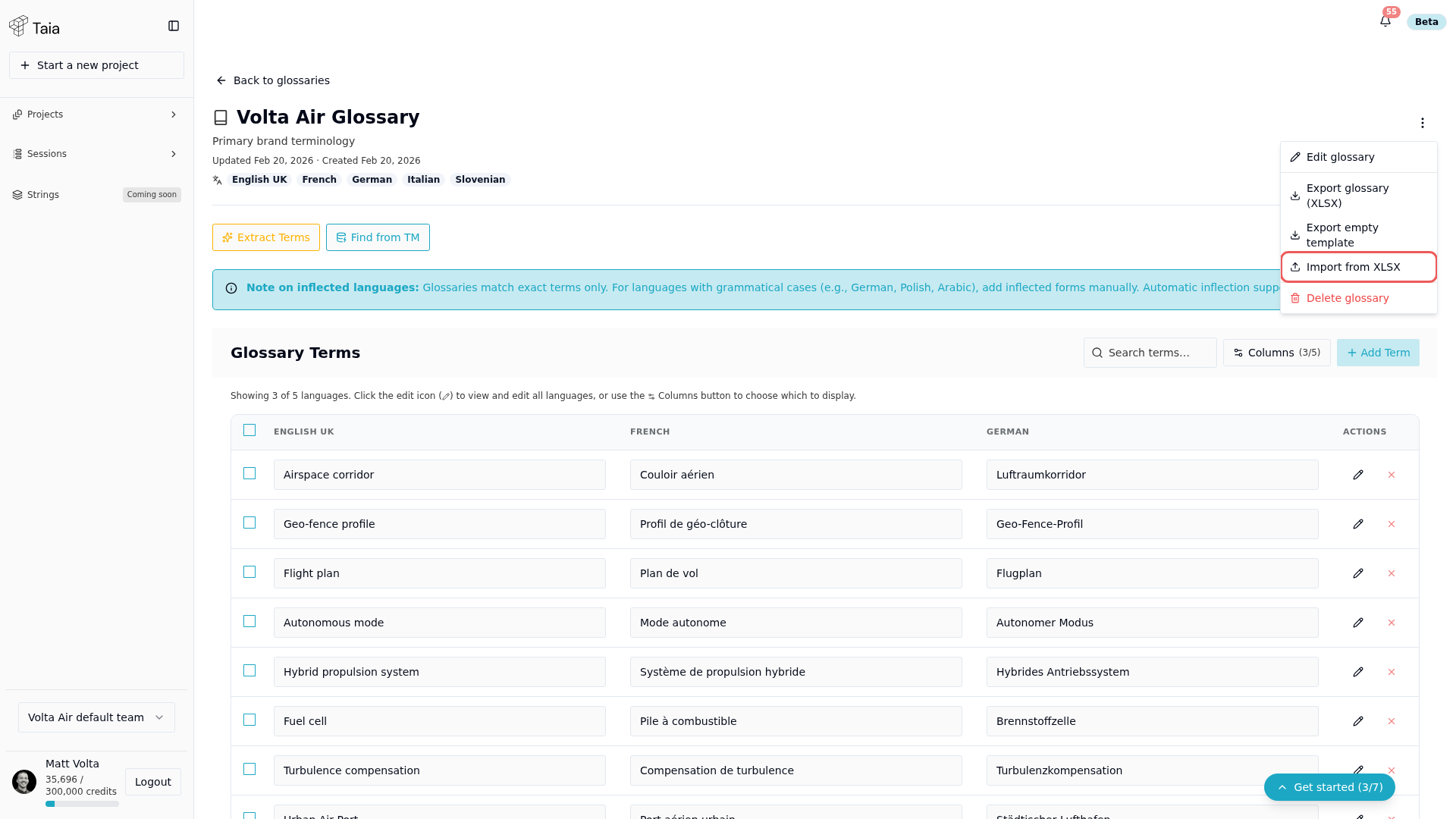
- Click the ⋮ (more actions) menu in the top-right corner and select Export empty template. This downloads an XLSX file whose header row already matches your glossary.
- Fill in your terms: one term per row, one column per language. Leave a cell empty if you don't have that language for a term.
- Open the same ⋮ menu, select Import from XLSX and choose your file.
- The import runs in the background. When it succeeds, a notification tells you how many terms were imported, and they appear in the glossary.
The header row must match the glossary
The first row of the file must list exactly the glossary's languages, as language codes, in the same order as the glossary. Taia doesn't match language names or reorder columns, so a file with a different header is rejected with Invalid template format and the languages it expected.
Starting from Export empty template is the easiest way to get this right.
| en-US | de-DE | fr-FR |
|---|---|---|
| Dashboard | Dashboard | Tableau de bord |
| Workspace | Arbeitsbereich | Espace de travail |
Importing into a glossary that already has terms
- A row identical to a term already in the glossary, ignoring capitalization, isn't added a second time. The existing term is updated to match the file, including its capitalization.
- A row that differs in any cell is added as a new term. To change the translation of an existing term, edit that term in the glossary instead of importing it again.