Upgrade or downgrade your plan
You can change your Taia plan at any time. Upgrading gives you more words per month and unlocks features like glossaries, translation memory, and style guides.
Prerequisites
You must be signed in as the account owner or billing manager.
Upgrade your plan
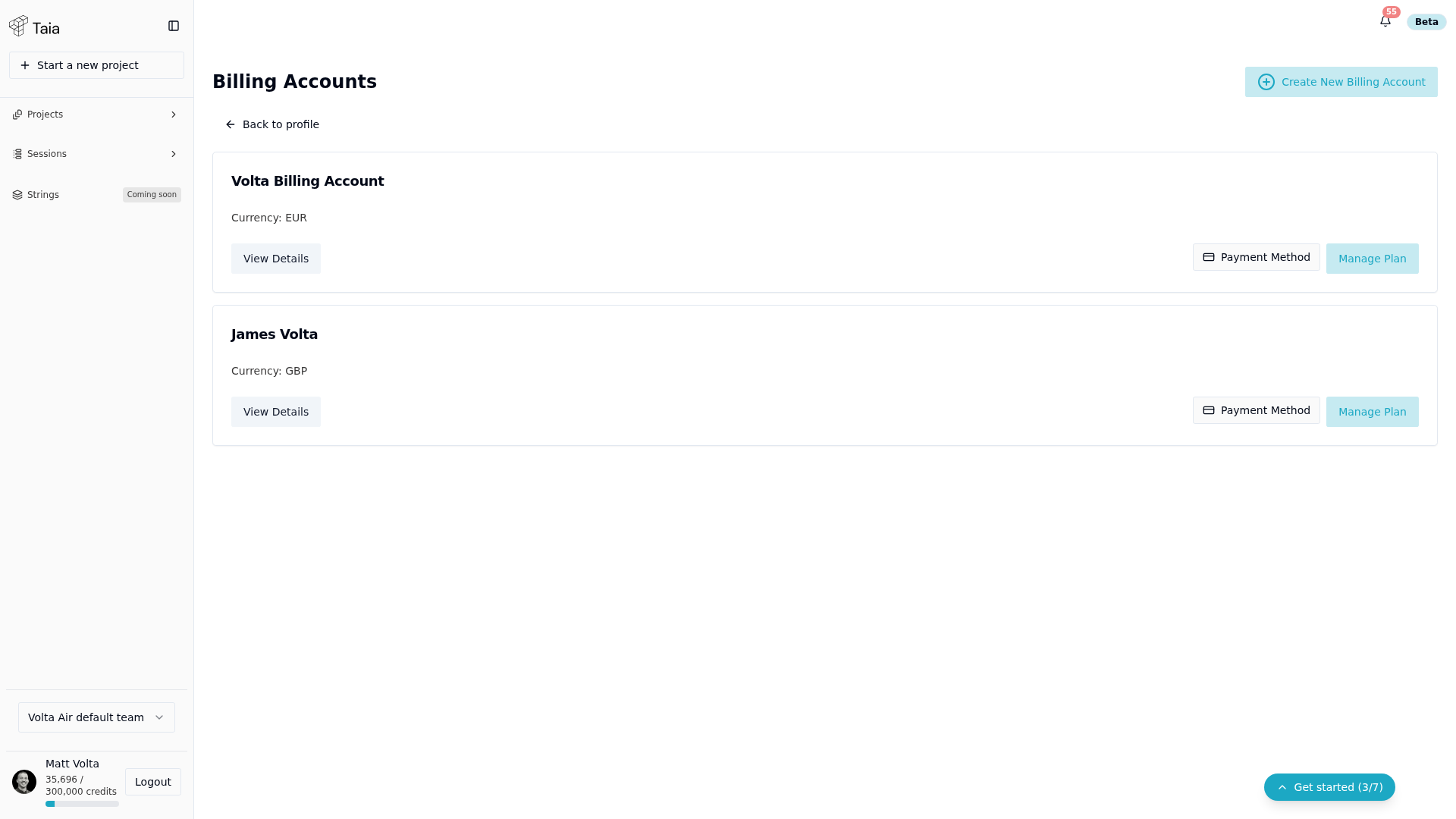
- Go to Profile and click through to Billing Accounts.
- Click Upgrade Plan (shown for accounts with no active subscription yet) or Manage Plan (shown once a subscription already exists) on the billing account.
- You'll be taken to a plan preview page showing the new monthly quota, features, and price.
- Confirm the change — you'll be redirected to Stripe's checkout page.
- Enter your payment details and complete the payment.
- After payment, Stripe redirects you back to Taia and your plan updates immediately.
Available plans
For current pricing and features per plan, see the Subscription plans reference or visit taia.io/pricing.
Downgrade your plan
You can downgrade yourself. A downgrade to a lower plan is scheduled for the end of your current billing period, and you keep everything your current plan includes until then.
- Go to Profile and click through to Billing Accounts.
- Click Manage Plan on the billing account.
- On the plans page, click Schedule Downgrade to Free on the Free plan. If your plan is above Basic, you can also choose Schedule Downgrade on Basic.
- A banner at the top of the page confirms the date your plan changes, and the button now reads Downgrade scheduled.
Your existing projects stay open on the lower plan, including AI translations made with languages or file types it doesn't include. The lower plan's limits apply only when you start a new AI translation.
In rare cases the change can't be scheduled and applies straight away instead. The confirmation message tells you when that happens.
If the Free plan shows as not available on your billing account, get in touch and we'll make the change for you.
Move to a smaller Pro tier
If you want to stay on Pro with fewer credits a month, use Customize Your Pro Plan on the same page instead:
- Choose the smaller tier and click Downgrade to that tier.
- Review the change and click Confirm Downgrade.
A tier change applies straight away, not at the end of the billing period:
- Your monthly credit allowance drops to the new tier's straight away. If you've already used more than that this month, you won't have credits left until the next period.
- The unused part of what you paid becomes a credit on your future invoices, and the dialog shows how much before you confirm.
- It cancels any downgrade you had scheduled. If you still want to move to Free, schedule that again afterwards.
Cancel your subscription
There's no cancel button in the app. Downgrading to Free stops your payments and keeps your account and projects. If you want the subscription closed completely, for example to delete your billing account, get in touch and we'll do it for you.
Organization billing
For team accounts, billing is managed at the organization level. If you're in an organization, contact your organization manager or billing manager to change the plan. See Set up your organization for context.