Create and attach a Translation Memory
A Translation Memory (TM) stores every segment you've ever translated. When the same (or similar) sentence appears again, Taia suggests the stored translation so you don't have to translate it twice. Over time, your TM becomes one of the most valuable assets in your localization workflow.
Prerequisites
Your plan must include the Translation Memory feature (Pro and Enterprise plans).
Create a Translation Memory
- In the sidebar, click Translation Memory.
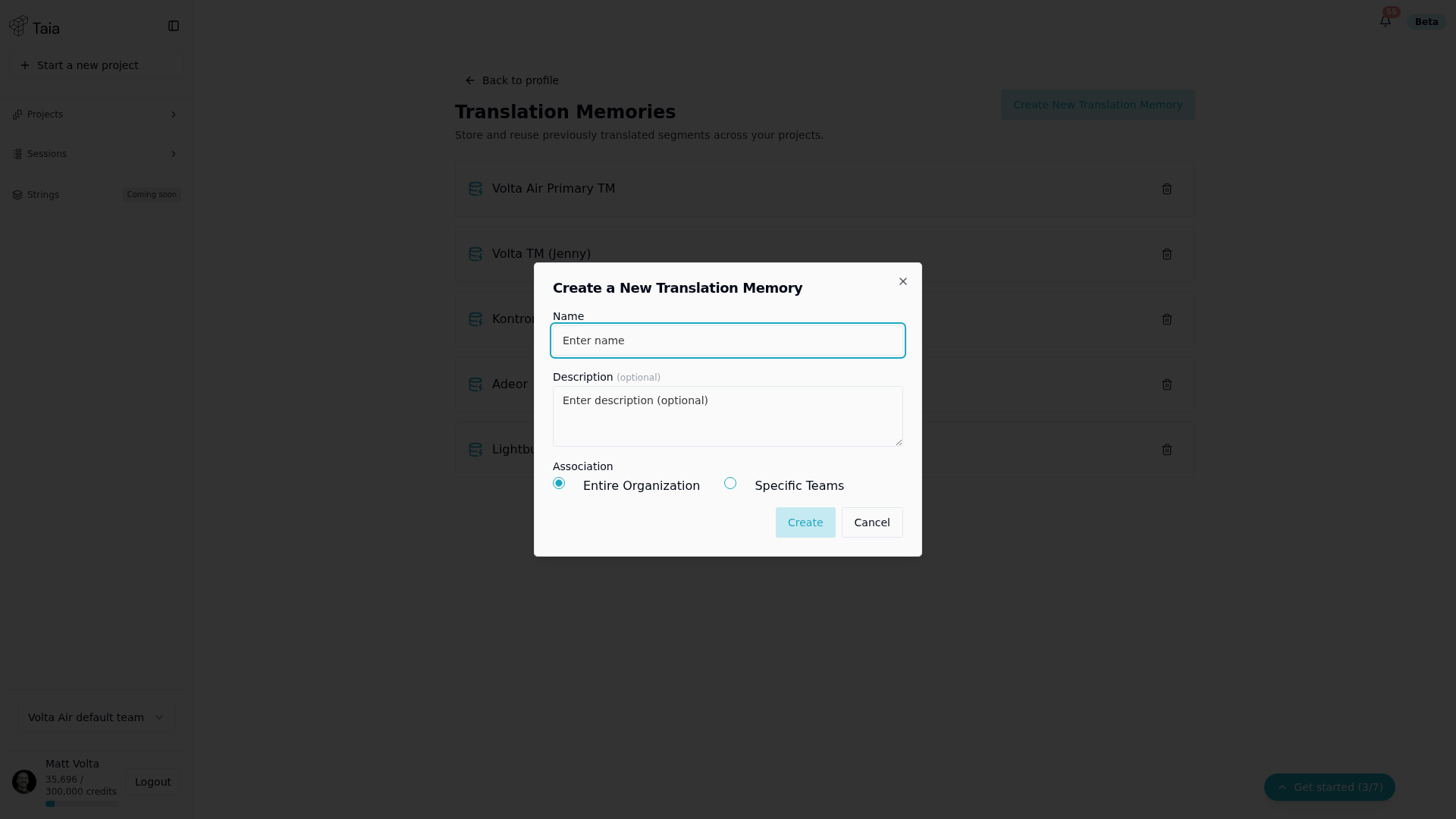
- Click Create New Translation Memory.
- Enter a name (for example, "Marketing EN→DE").
- Optionally add a description.
- Choose Entire Organization or Specific Teams for who can use this TM.
- Click Create.
There's no source/target language selection at creation — the create dialog only asks for a name, optional description, and organization/team association.
The TM is now empty. It will start filling automatically as you translate projects that have it attached.
Attach a TM to a project
- On the Home page, upload your file and set your languages.
- The Translation Memory dropdown appears below the language selectors.
- Select one or more TMs. Only TMs matching your language pair are shown.
- Click Submit Project.
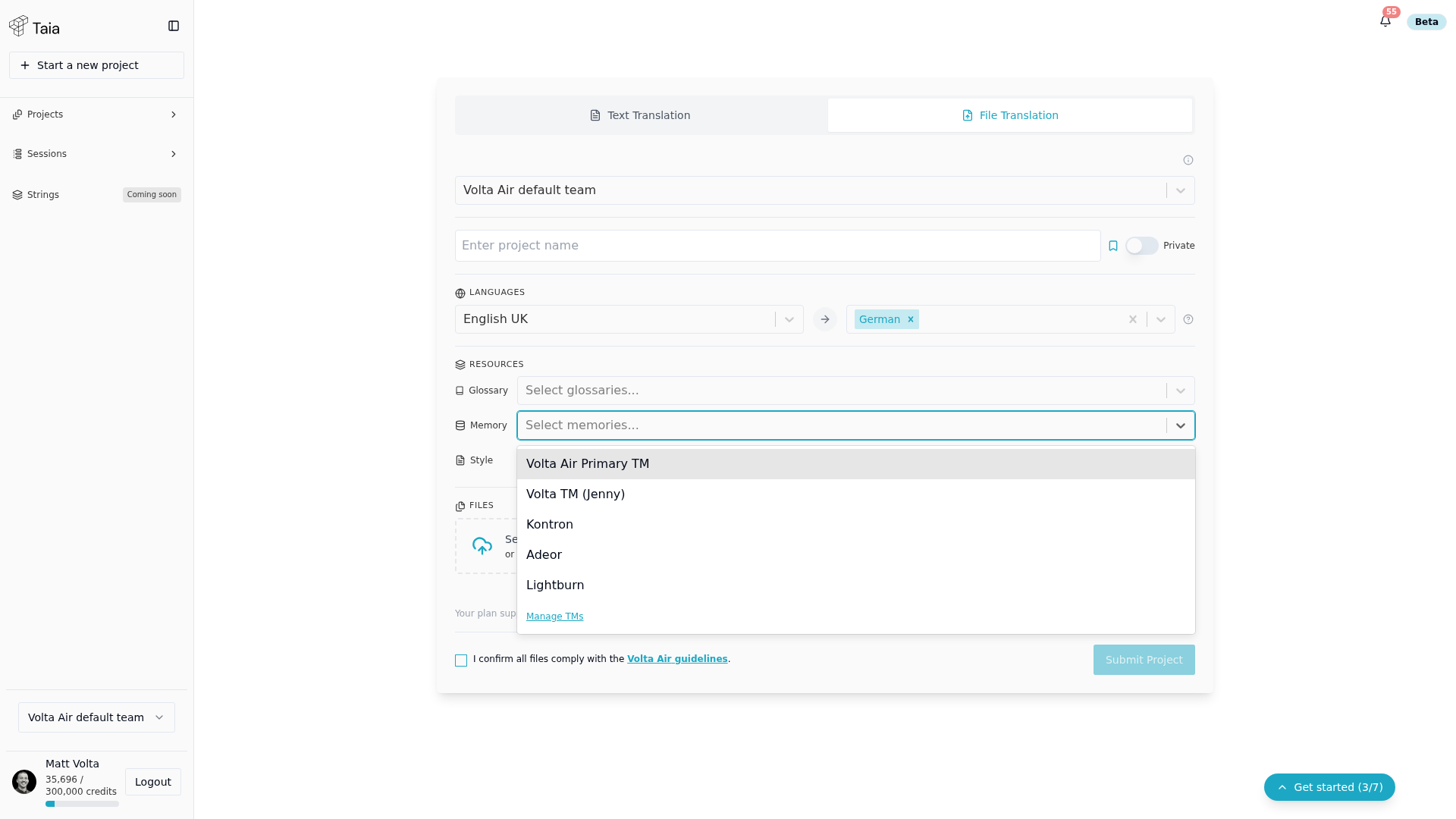
During AI translation and in the CAT editor, Taia queries the attached TMs for matches and applies them automatically.
How TM entries are saved
Every time a translator confirms a segment in the CAT editor, that segment is saved back into the TM. AI translations are also added when they are used without modification. Over multiple projects, your TM builds up coverage and reduces the words you pay for.
Start a TM over
Because every saved segment goes into the memory, a TM you used while evaluating Taia will contain your practice edits along with everything else. That is usually fine, but if you would rather start clean before real work begins, you can throw the memory away and make a new one.
- In the sidebar, click Translation Memory.
- Click the trash icon on the TM you want to remove.
- Confirm in the Delete translation memory dialog.
- Create a fresh TM with the same name and attach it to your next project.
Deleting a TM cannot be undone, and it does not touch your projects or the translations already delivered — it only removes the stored memory those projects fed. If there is anything in there worth keeping, open the TM first and use Export TMX from its ⋮ menu, then import that file into the new one.
This is the answer to a question most people evaluating Taia have and few ask: yes, your test edits go into the memory, and no, you are not stuck with them. Try things properly during evaluation, then delete and recreate the TM before you go live.
Related
- Import a TMX file — populate a TM from an existing file
- Edit TM entries
- Understand match scores
- Translation Memory explained