Review annotations (QA flags)
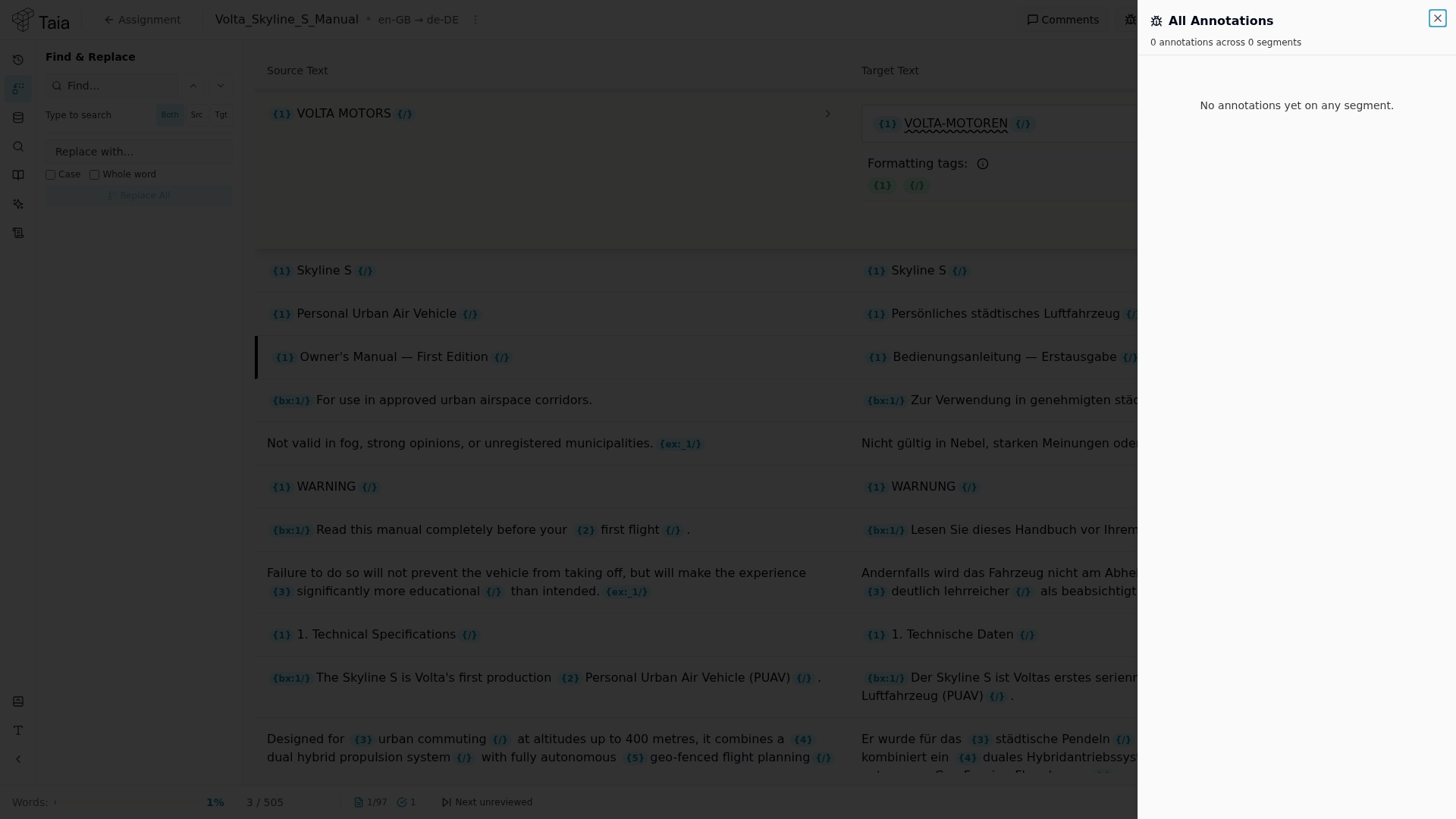
The CAT editor doesn't run an automated QA scan — instead, reviewers flag issues directly on segments as annotations, using standard MQM (Multidimensional Quality Metrics) severity levels. This guide explains how to view and work through them.
View annotations
- In the CAT editor header, click Errors (a bug icon with a count badge if any annotations exist).
- The All Annotations panel opens on the right, listing annotations grouped by segment.
- Each annotation shows an MQM category and a severity badge:
- Critical
- Major
- Minor
- Neutral
- If nothing has been flagged yet, the panel shows "No annotations yet on any segment."
A segment with annotations also shows a bug icon and count directly on its row, and "Errors (N)" in the row's ⋮ menu.
Resolve a flagged segment
- Click an annotation (or the segment's bug icon) to jump to that segment.
- Edit the target text to fix the issue.
- Save the segment with Ctrl+Enter.
Submit your work
There is no submit button inside the editor. Once the flagged issues are resolved, go back to the project page or your assignment page and submit from there — see submit completed work.